
Cricket Team Availability: Ask Who Can Play and Pick Your XI
Ask your cricket squad who's available for the next match, see Yes, Maybe and No counts in one place, and pick the playing XI from the players who said yes.
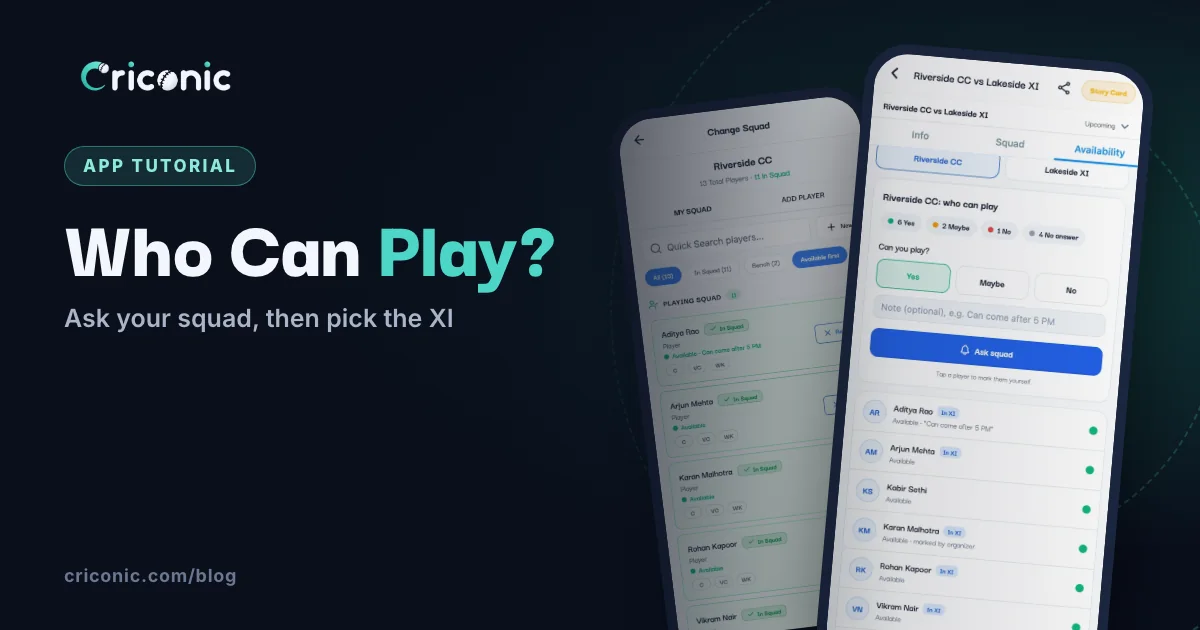
Friday night, the team group: "Kal ka match, kaun kaun aa raha hai?" A few thumbs up, two "dekhta hoon", and half the squad says nothing. On Saturday morning you're still counting heads.
This guide shows how to ask your squad who's available for an upcoming match in the Criconic app, how players answer, where you see the Yes, Maybe and No count, and how to pick the playing XI from the players who said yes. It works for friendly matches and tournament fixtures alike.
1. Schedule the match
Availability is for a match that hasn't started yet, so create the match ahead of time. Set it up as usual (see how to use a cricket scoring app): pick both teams and a squad for each. The app ticks the team's last XI for you, and you can change it later.
In the Date & Venue step, tap Change next to Scheduled Date and pick the match day. On the last step, tap Schedule instead of Start Match. The match is saved for later.
Tournament fixtures are upcoming matches too, so everything below works for them once their teams are known.
2. Open the Availability tab
Go to My Cricket, open Matches and tap the Upcoming filter. Tap the match. If you can score it, a menu opens first: tap View Full Scorecard.
An upcoming match has Info and Squad tabs, and a third tab, Availability, for the people involved: the players of both teams and whoever runs the match. Everyone else sees no such tab, so your squad's answers stay inside the team.
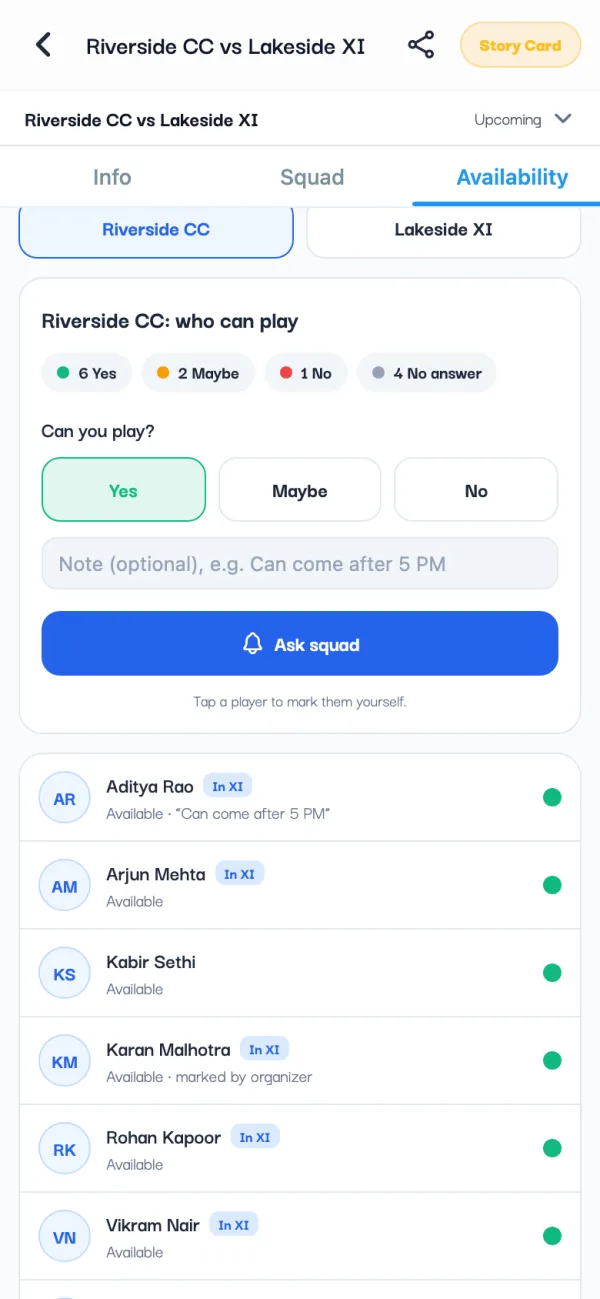
- The count: Yes, Maybe, No and No answer for the whole team.
- The list: every player in the team, not just the XI you picked. Those who said yes come first, then maybe, then no answer, and no at the bottom.
- In XI: marks the players already in the match squad.
- Both teams? If you organise the match, you see both sides. Switch between them with the team buttons at the top. A player sees only their own team.
3. Tap Ask squad
Tap Ask squad. Every player in the team who has a Criconic account and hasn't answered gets a notification: Are you available?, with the two teams and the match date. The app confirms with Squad asked and how many players it reached.
- Only the ones who haven't answered are asked, so players who already said yes or no aren't disturbed again.
- Once every 3 hours per team. Tap it again too soon and the app says Asked recently, with how long until you can ask again.
- Nobody to ask means everyone with an account has answered. Players without one can be marked by hand (step 5).
The match's creator and scorers (see how to add a scorer), the tournament's organizers, and the team's owner, organizers and captain can all ask. So the captain can chase the team, not just the person who made the match. (The captain is the player marked C on the team page; see how to create a cricket team.)
4. How players answer
Tapping the notification opens the match straight on its Availability tab. If the player has the app open when you ask, it also pops up there with a View button. Missed it? It's under the bell too, on the Notifications screen.
- Under Can you play?, tap Yes, Maybe or No. Tapping the same answer again clears it.
- Add a note if it helps, up to 140 characters: "Can come after 5 PM", "Only if we bat first". Type it before tapping the answer, or tap Save after changing it.
- Change the answer any time before the first ball. The organizer sees it next time they open the tab, or pull it down to refresh.
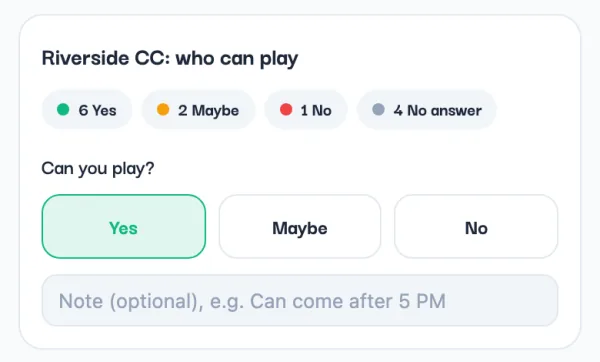
Players can answer on the website too. Open the match on criconic.com, sign in and go to the Squads tab: before the match starts it shows the same count, Can you play? with Yes, Maybe and No, and Ask squad for organizers. Notes are added in the app.
5. Mark players who aren't on the app
Some players will answer you on a call or in the group chat instead. On the Availability tab, tap their name. The Mark their availability sheet offers Available, Maybe and Not available, plus Clear answer if you got it wrong.
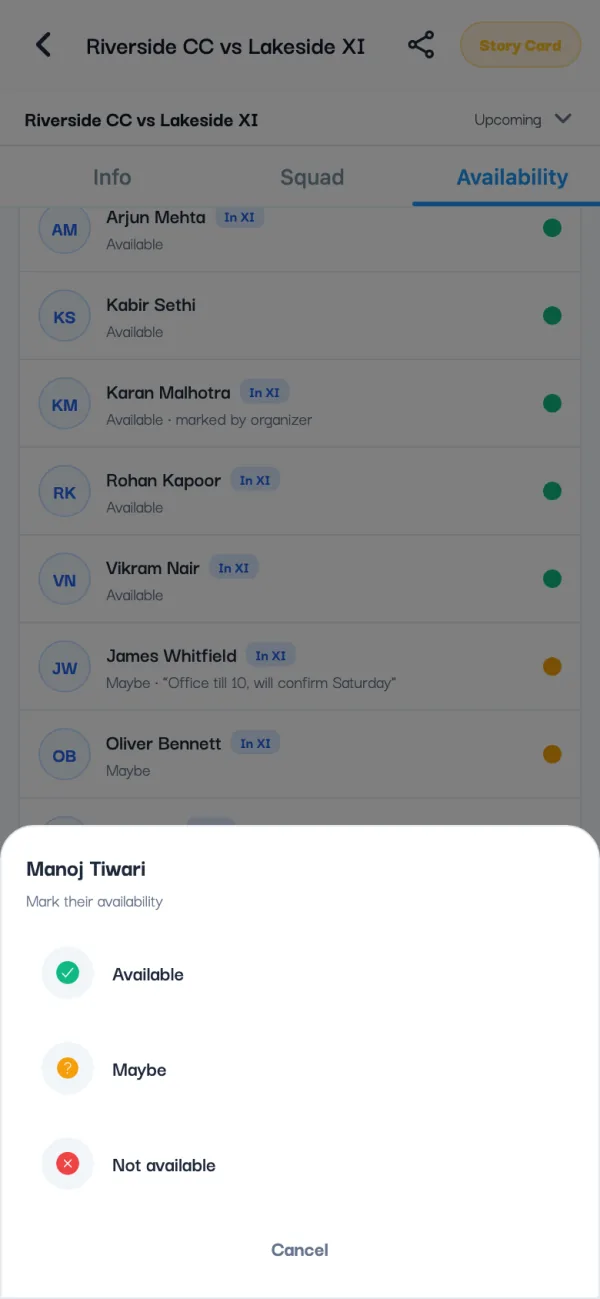
Their row then says marked by organizer, so everyone knows the answer didn't come from the player. A player added by name only shows no Criconic account until marked: they can't sign in, so they can't get the ask. Add their phone number on the team page and they can answer for themselves once they sign up with it.
6. Pick the playing XI from the players who said yes
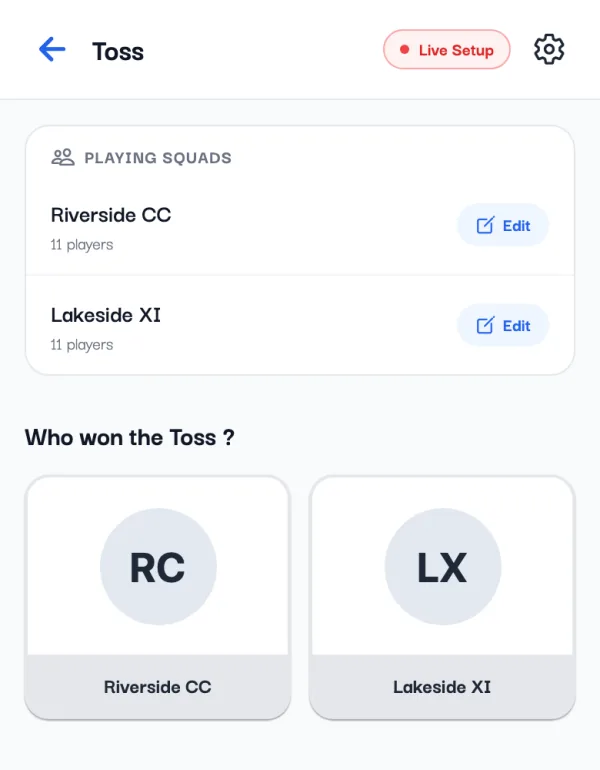
On match day, tap the match and choose Start Scoring. Check the overs, ground and match rules, then tap Start Match. The toss screen opens with a Playing squads card at the top: tap Edit next to your team.
The Change Squad screen shows each player's answer under their name, with their note. Available first is switched on, so the players who said yes sit at the top of both lists:
- PLAYING SQUAD: today's XI. Tap Remove for anyone who said no.
- BENCH / AVAILABLE: the rest of the team. Tap Add to bring a player into the XI.
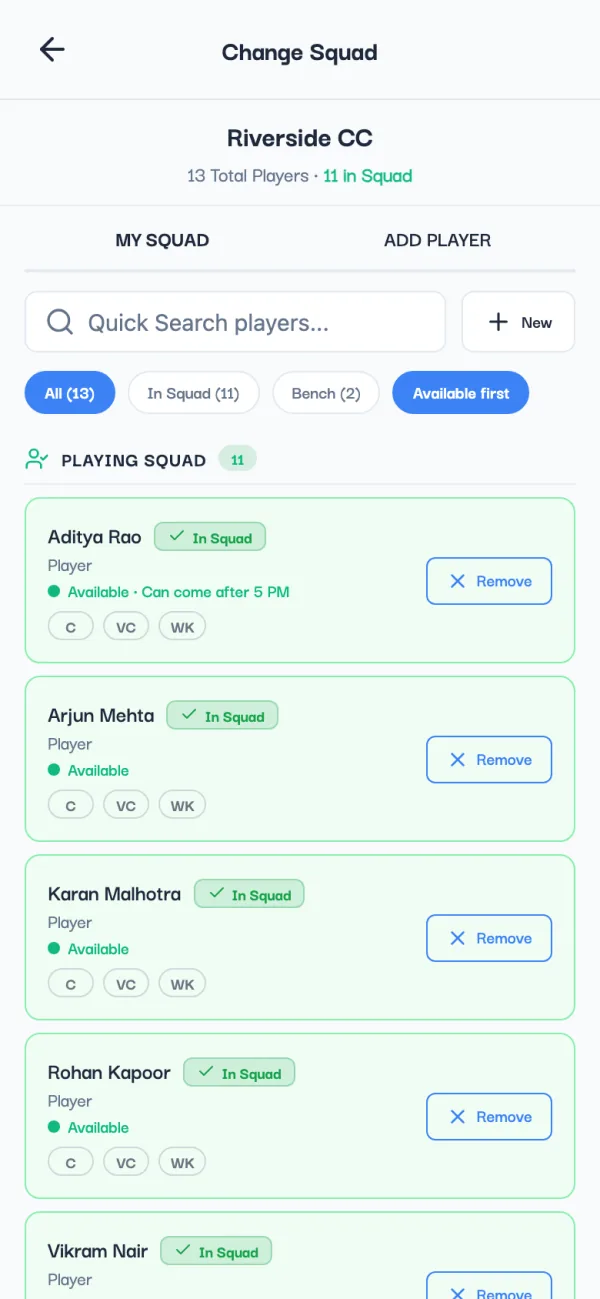
Tap Save Changes when the XI is right. A playing squad needs at least 2 players, so it works for box cricket and 6-a-side games too.
7. Set the captain, vice-captain and keeper
Players in the playing squad have C, VC and WK chips. Tap one to give that player the role for this match, and tap it again to take it back. There's one captain and one vice-captain, never the same player, while the keeper can also be the captain. They count as a change, so tap Save Changes after.
Then go back to the toss. Answers close when the first ball is bowled: the Availability tab says The first ball has been bowled, so answers are closed.
Tips for a full XI every week
- Ask early. Schedule the match two or three days ahead and tap Ask squad the same day. Ask again the next evening for the ones still silent.
- Keep a bigger squad. Add your whole club to the team, not just eleven. Everyone on the team list is asked, so you have backups ready.
- Use the notes. "Late by 30 minutes" tells you who opens the batting and who comes in at number 8.
- Get numbers in. Players who sign up answer for themselves, and their runs and wickets land on their own profile. Scoring and stats are free.
Questions
How do I check which players are available for a cricket match?
Schedule the match in the Criconic app, open it and go to the Availability tab. It shows how many players said Yes, Maybe or No, who hasn't answered, and each player's answer. Tap Ask squad to send everyone who hasn't answered an Are you available? notification.
Do my players need the app to answer?
They need a Criconic account. They can answer in the app or on criconic.com, in the match's Squads tab. For players without an account, the organizer taps their name and marks them Available, Maybe or Not available.
Does Criconic send an SMS or a WhatsApp message?
No. The ask is an app notification, and it also shows on the player's Notifications screen. Share the match link in your team group yourself if you want.
How often can I remind the squad?
Once every 3 hours for each team. Each ask goes only to players who haven't answered yet.
Can the team captain ask for availability?
Yes. The team's captain, owner and organizers can ask, and so can the match's creator and scorers and the tournament's organizers.
When does availability close?
When the first ball is bowled. Until then players can change their answer and you can change the XI before the toss.