How to Live Stream a Cricket Match on YouTube (with a Live Scoreboard)
Live stream a local cricket match on YouTube with a live scoreboard overlay: channel setup, camera, internet, OBS, phone streaming and common fixes.
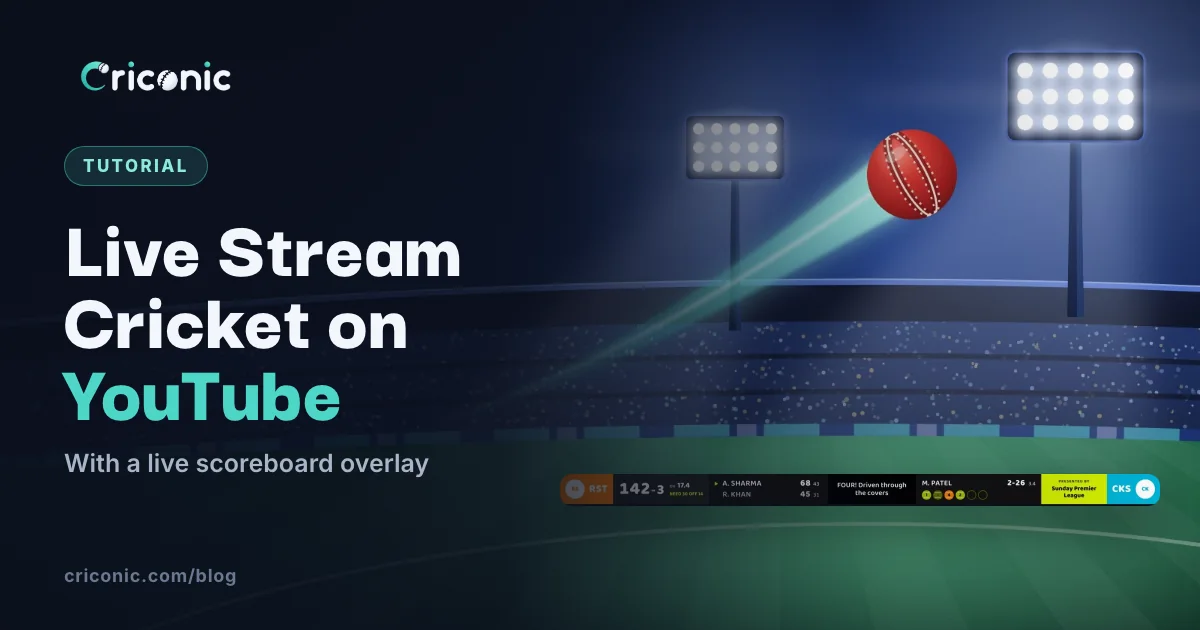
Streaming your local match on YouTube used to mean a broadcast van. Now it takes a phone or camera, a laptop, a decent internet connection and a free scoreboard overlay, so friends, family and the other team's fans can watch every ball with the score on screen.
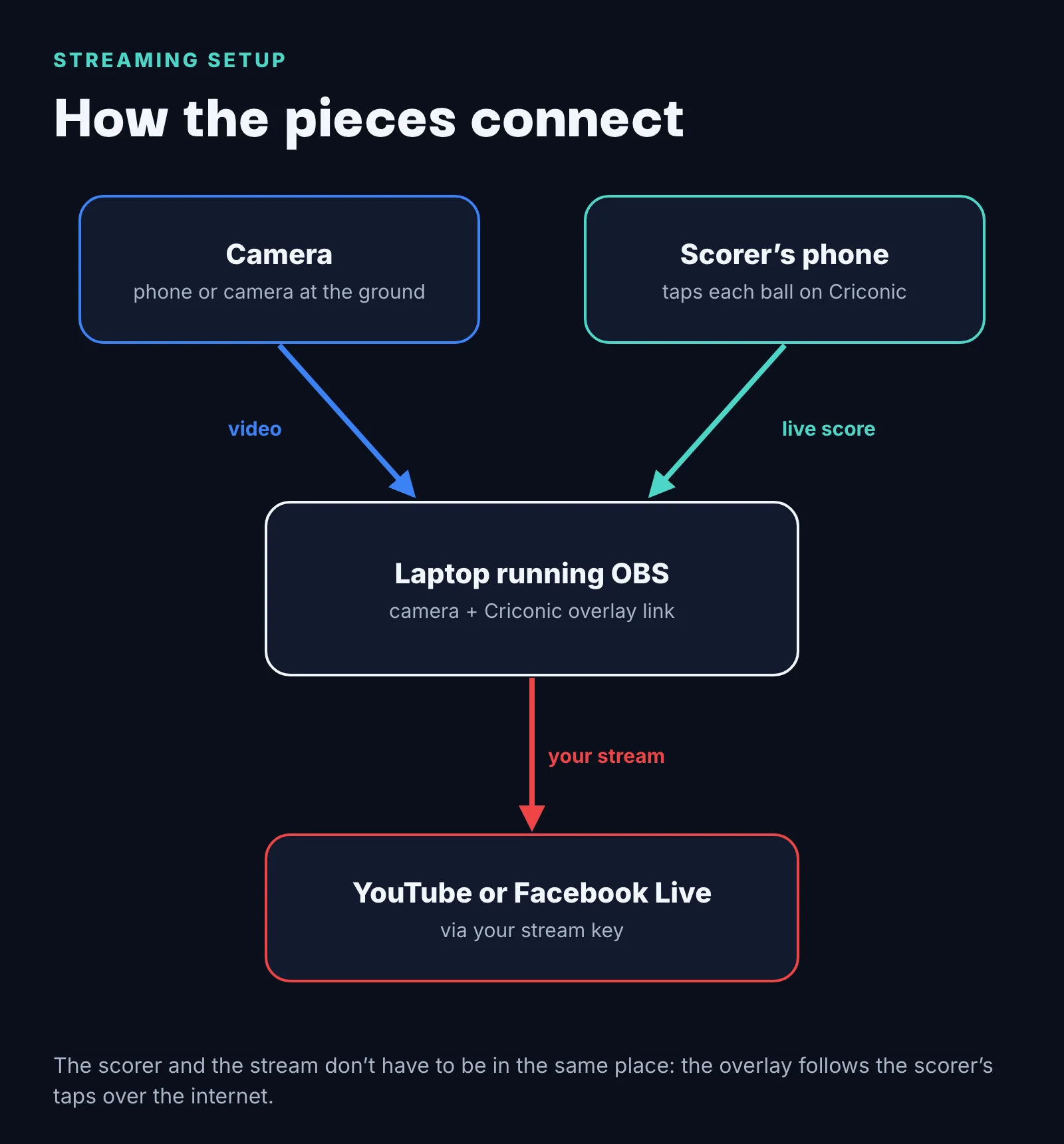
This guide covers the whole setup: getting your YouTube channel ready, the kit you need, adding a live scoreboard that updates as your scorer taps each ball, and the settings that keep the stream from freezing.
What you need
| Item | What works |
|---|---|
| Camera | A phone on a tripod behind the bowler's arm, or any camera that connects to a laptop |
| Computer | A laptop running OBS Studio, which is free |
| Internet | A steady upload connection: a good 4G or 5G hotspot, or ground Wi-Fi |
| Scorer | A second person scoring on Criconic, on their own phone |
| Scoreboard | Criconic's live overlay link, added to OBS as a browser source |
| YouTube | A verified channel with live streaming turned on |
Step 1: get your YouTube channel ready
- Verify your channel with a phone number in YouTube settings.
- Turn on live streaming. Open YouTube Studio and choose Create → Go live. The first time, it can take up to 24 hours before you can stream, so do this the day before the match, not at the ground.
- Know the phone-app limit. Going live straight from the YouTube phone app needs at least 50 subscribers, and YouTube may limit viewers until you reach 1,000 (see YouTube's mobile live rules). Streaming from a computer with an encoder like OBS doesn't have that limit, which is one more reason to use a laptop.
Step 2: set up the camera and the connection
Where to put the camera
- Behind the bowler's arm, raised up is the classic view: you see the bowler run in and the batter play the shot. A tripod on a chair or a wall gives you the height.
- Keep it out of the sun. Shooting into the sun turns the batter into a silhouette.
- Lock the phone in landscape for a normal YouTube stream, or portrait if you're streaming for Shorts-style vertical viewing (see below).
Internet
Upload speed matters more than download speed. Run a speed test at the ground before the match, and set your stream's bitrate comfortably below the upload speed you get, so a dip in signal doesn't freeze the stream. 720p at 30 frames a second looks good for local cricket and needs much less than 1080p. YouTube lists the recommended bitrates for each resolution in its encoder settings guide.
Step 3: set up OBS
Download OBS Studio on the laptop. It's free and works on Windows, Mac and Linux. Then:
- Add your camera as a Video Capture Device source (or a phone camera app that OBS can see).
- Set the canvas and output to 1280×720 for a 720p stream, or 1920×1080 for 1080p.
- In Settings → Stream, choose YouTube and connect your account, or paste the stream key from YouTube Studio.
- Add a microphone if you want commentary, and check the audio meter moves.
Step 4: add a live scoreboard overlay
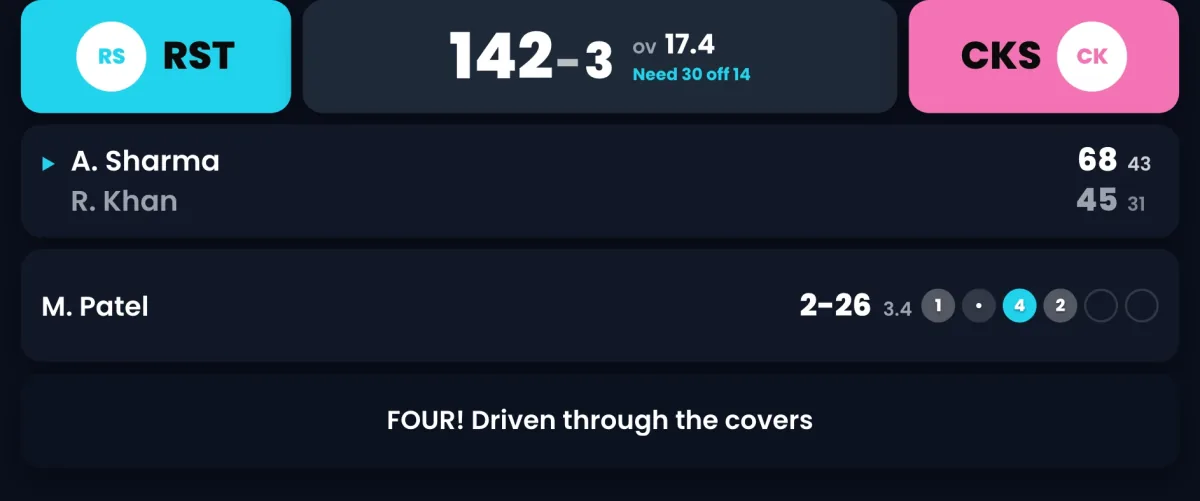
A score on screen is what makes a cricket stream watchable: viewers who join late know the situation straight away. With Criconic the overlay is a web page that updates on every ball, so there is nothing to type during the match.
- Create the match and start scoring on Criconic. Follow how to make a cricket scorecard if it's your first time.
- Switch on Go Live in the scorer's match menu. Your overlay link appears right under the switch: tap it to copy.
- Pick a theme in Overlay Setup, along with each team's colours. You can change it mid-match and the overlay in OBS updates by itself.
- In OBS, add a Browser source, paste the link and set it to 1920×1080. Drag it above the camera in the source list. The background is transparent, so only the scorebar shows.
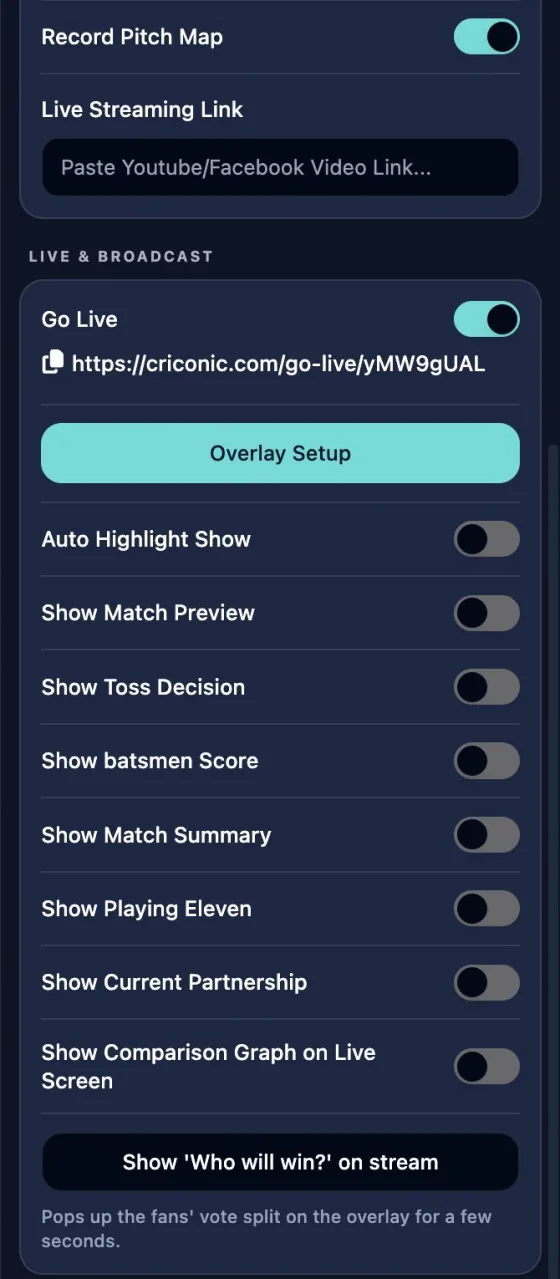
Fours, sixes and wickets animate across the bar on their own. The switches under Go Live put full-screen cards on the stream with one tap: the toss, playing elevens, the current partnership, a batter's card or the match summary. The full walkthrough, with every theme, is on the live stream overlays page.

Streaming from just a phone
No laptop? You can stream from a phone if your streaming app can add a web overlay on top of the camera. PRISM Live Studio is one app that can. Add the Criconic overlay link as a web widget, and use the vertical 9:16 theme if you hold the phone upright.
Remember the YouTube limit from step 1: the YouTube app itself needs 50 subscribers to go live from a phone. Check what your streaming app needs before match day.
Step 5: go live
- In YouTube Studio, create the stream with a clear title: both team names, the tournament and the date.
- Click Start Streaming in OBS. YouTube goes live once it receives your video.
- Paste the YouTube link into Live Streaming Link in Criconic's match menu, so people following the scorecard can watch the video from there too.
- Share the YouTube link in your team groups before the first ball.
Fixing common problems
| Problem | Fix |
|---|---|
| Stream keeps buffering | Lower the bitrate or drop to 720p. Move the hotspot phone closer to a window or higher up. |
| Overlay is blank | Check Go Live is on and the match has started. Before the first ball it shows that the match is yet to start. |
| Score stopped updating | Usually the laptop lost internet for a moment. Right-click the browser source in OBS and choose Refresh. |
| Can't go live on YouTube | Live streaming isn't turned on yet, or the 24-hour wait hasn't finished. Do it the day before. |
| Echo or wind noise | Mute the camera's microphone and use one external mic away from the wind. |
Questions
How do I live stream a cricket match on YouTube for free?
Use a phone or camera, a laptop running OBS Studio (free) and a free scoreboard overlay. Turn on live streaming in YouTube Studio, paste your stream key into OBS, add the Criconic overlay link as a browser source and click Start Streaming.
How do I add a live score to my cricket stream?
Score the match on Criconic, switch on Go Live in the scorer's match menu, and copy the overlay link. Add it to OBS as a browser source at 1920×1080. The scorebar updates on every ball you score.
Can I live stream cricket from my phone?
Yes. The YouTube app needs at least 50 subscribers to go live from a phone. Streaming apps that support a web overlay, such as PRISM Live Studio, can show Criconic's scoreboard, including a vertical theme for portrait streams.
How many subscribers do I need to stream on YouTube?
None when you stream from a computer with an encoder like OBS. Going live from the YouTube phone app needs at least 50 subscribers, and YouTube may limit viewers until you reach 1,000.
Is the Criconic scoreboard overlay free?
Yes. The overlay link, every theme and the full-screen cards are free.