
How to Create a Cricket Tournament Online: Step-by-Step Tutorial
Create a cricket tournament online step by step: add teams, make the fixtures in a few taps, and get a points table, NRR and leaderboards that update live.
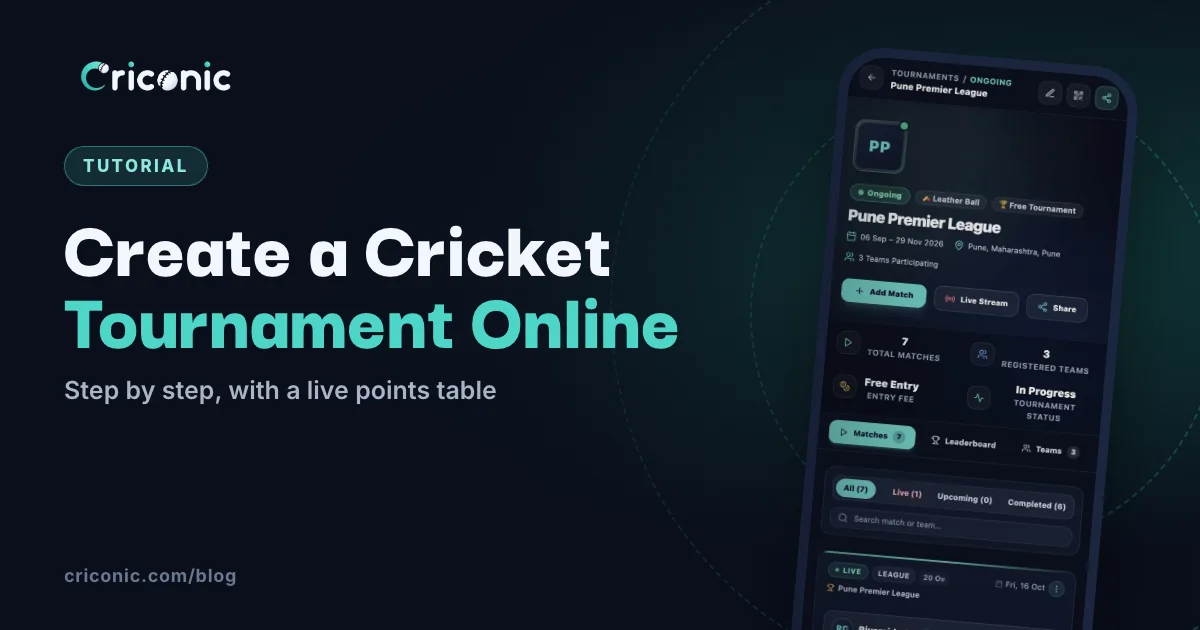
Running a tournament from a WhatsApp group and a spreadsheet works until the first close finish. Then everyone wants the points table, the net run rate and the top scorers, and you're doing maths at midnight.
This tutorial shows how to set up a cricket tournament online with Criconic, step by step: create the tournament, bring in the teams, make the fixtures in a few taps, and let the points table, NRR and leaderboards update themselves.
Before you start
Decide the format (league, groups or knockout), the overs and the points rules first. Our guide on how to organise a cricket tournament covers the planning, including how many matches each format needs. Whichever you pick, the app can make the fixtures for you.
Step 1: create the tournament
Go to Tournaments and create a new one. Fill in:
- Banner and logo, so the page looks like your league.
- Tournament or series name and the location.
- Organizer name and number, filled in from your account.
- Ball type and the start and end dates.
- Rules and regulations: pick from a list of common tournament rules, or add your own.
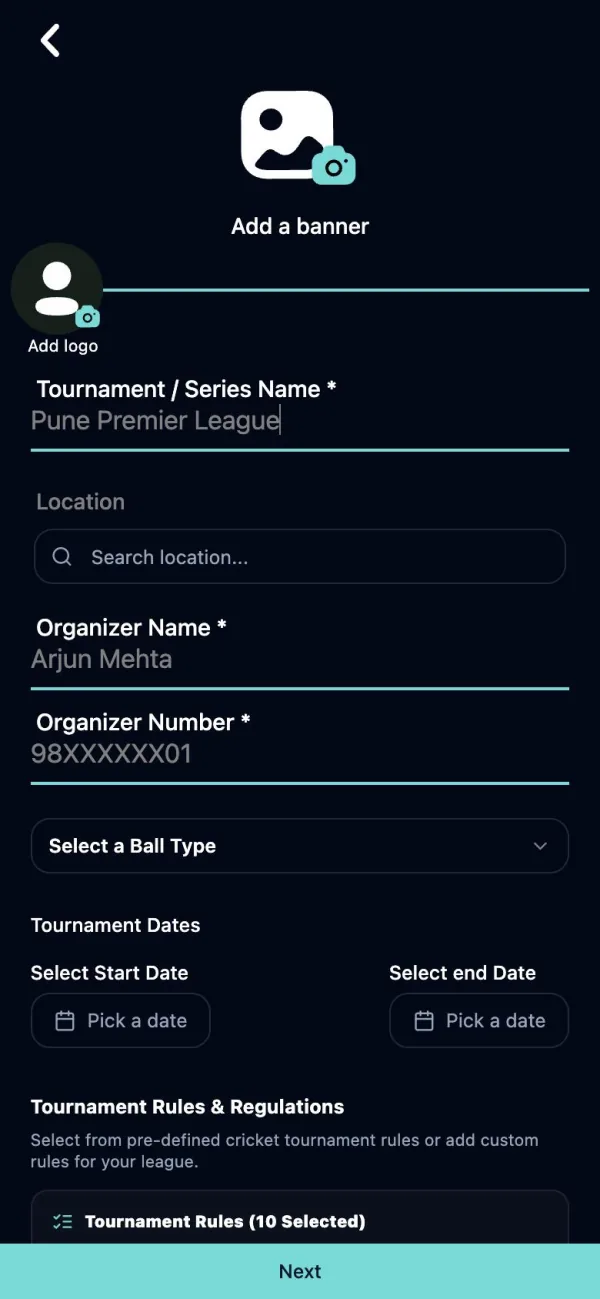
Step 2: meet your tournament page
Your tournament gets its own public page with everything teams and fans look for: matches (live, upcoming and completed), the leaderboard, teams, the points table and an About & Rules tab.
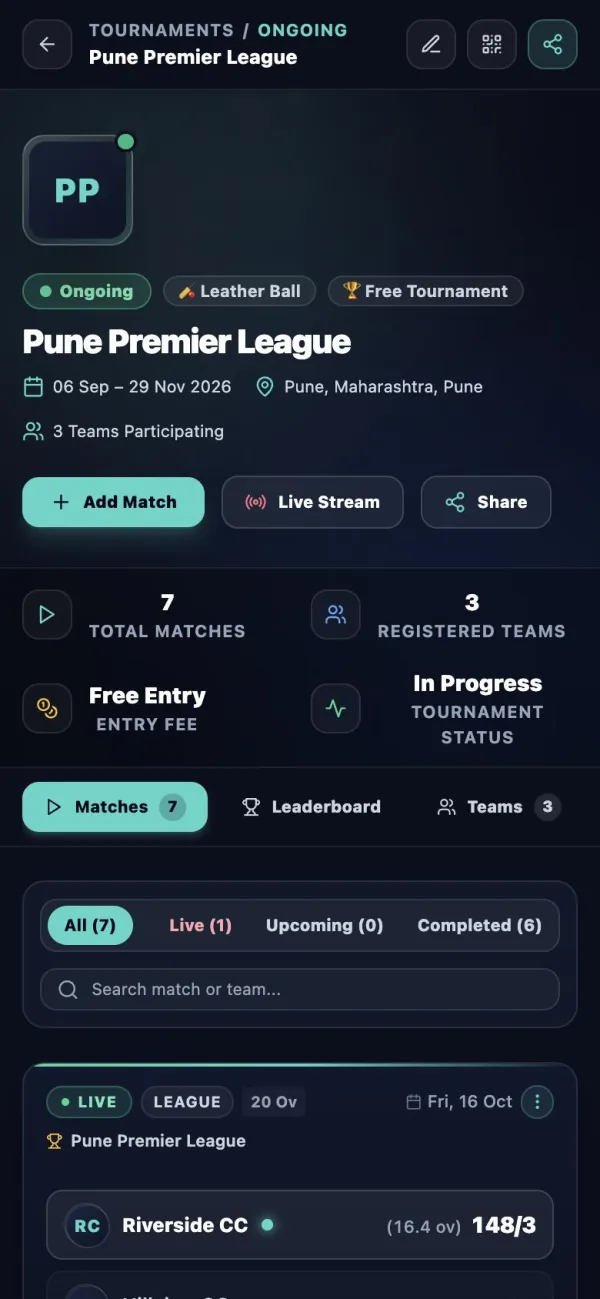
Step 3: bring in the teams
Add teams in either of two ways:
- Add them yourself from the Teams tab.
- Let captains register by scanning the tournament's QR code (the QR icon at the top of the page) or opening its link. Players join their own team with the team's QR code.
Step 4: make the fixtures
Once at least two teams are in, the Criconic app can plan every match for you. Open the tournament, go to the Matches tab and tap Make fixtures. Then choose:
- Format: League (every team plays every other team), Groups + knockout (groups first, then the top teams play knockouts) or Knockout (lose once and you're out).
- Each pair plays once or twice, for a league or groups.
- Groups: how many, and how many teams from each go through to the knockouts.
- Draw teams at random, or keep the order of the Teams tab, where the first team is the top seed.
- When: the first match's date and time, matches a day, the time for each match and the days between match days (every day, once a week, or anything in between).
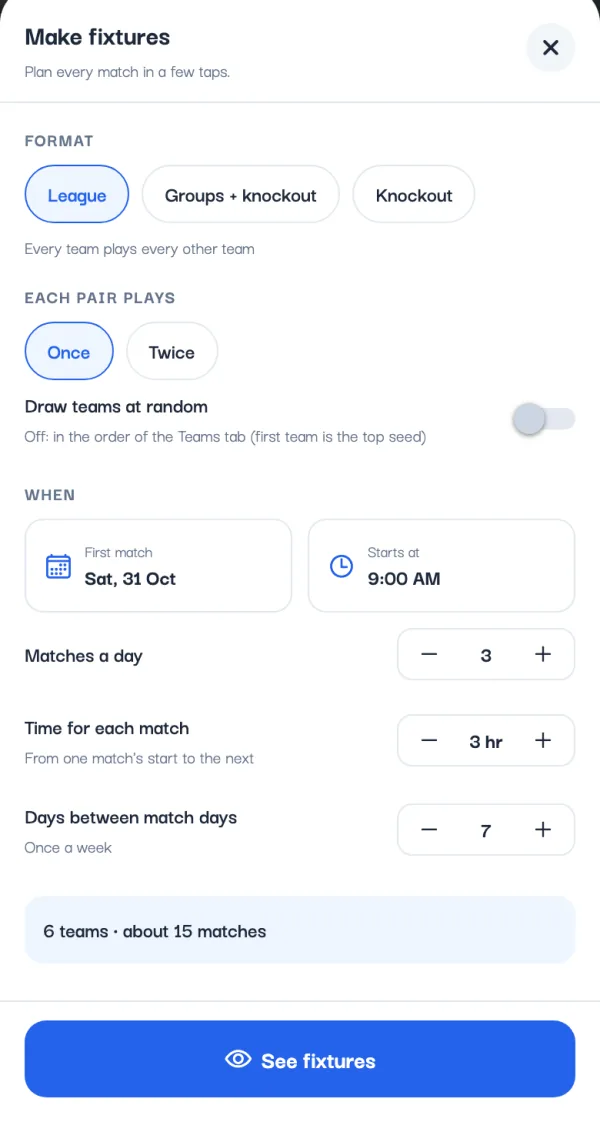
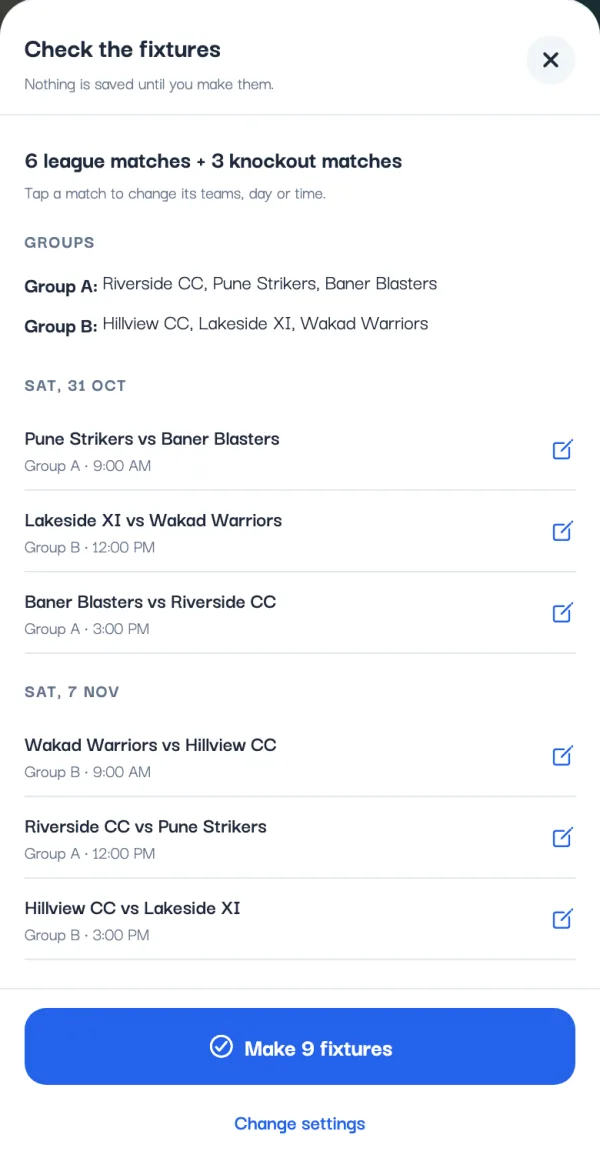
Tap See fixtures to check them. Nothing is saved yet: tap any league or group match to change its teams, day or time, or Change settings to try another format. When it looks right, tap Make fixtures. Every match lands in the Matches tab as an upcoming fixture, ready to score, and shows on the tournament's page on the website too.
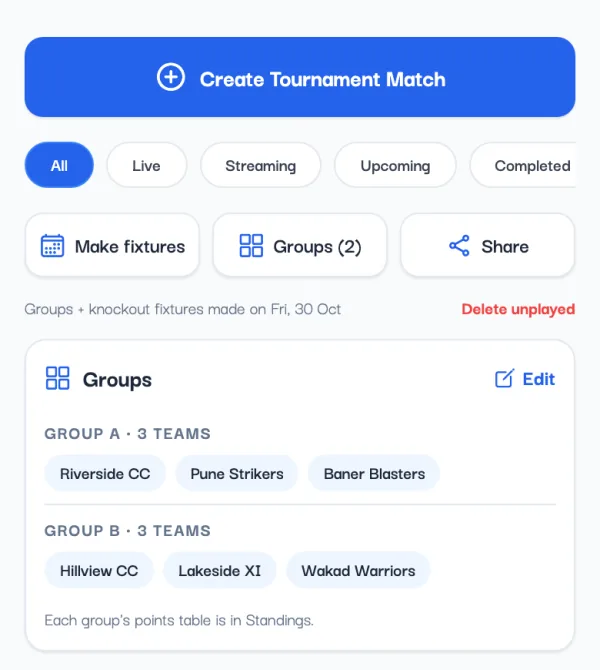
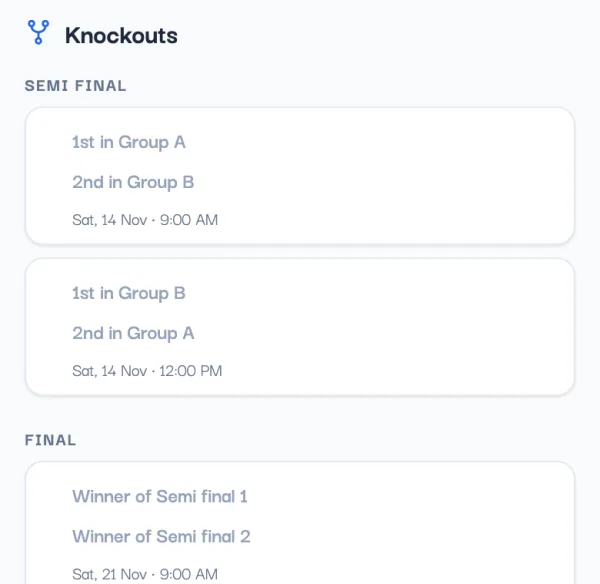
Knockouts fill themselves in. When the group tables are final or a knockout match is won, the next matches get their teams; open the tournament's Matches tab in the app to see them. Changed your mind? Delete unplayed removes the fixtures that haven't started, and matches already played stay.
Or add the matches one by one
On the website, or for a one-off game, tap Add Match, pick the two teams and their squads, and choose the round in the match details:
- League Match for the round-robin stage. Only these count in the points table.
- Knockouts: Round One, Round Two, Pre Quarter Final, Quarter Final, Semi Final, Qualifier 1, Eliminator, Qualifier 2 and Final.
- Or your own round name.
Set the overs, ball, pitch, date and ground as for any match. Tap Schedule to add it as an upcoming fixture, or Start Now to play it straight away.
Step 5: score the matches
The tournament's organizers can score every match in it, along with each match's creator. Scoring works exactly as in our scorecard tutorial: one tap per ball, with the toss, house rules and live scorecard.
Step 6: the points table updates itself
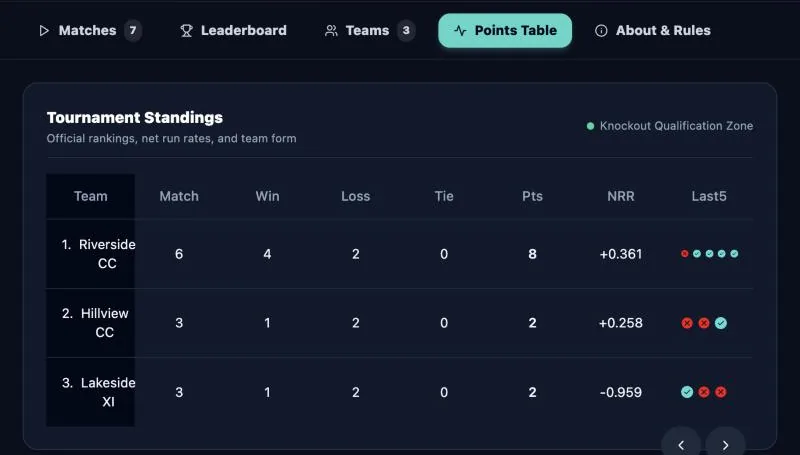
After each league match, the Points Table tab updates on its own:
- 2 points for a win, 1 for a tie (or a drawn Test).
- Sorted by points, then net run rate, worked out the ICC way: overs counted in balls, and the full quota of overs for a side that was bowled out.
- Each team's last five results show its form.
Want to check the maths? Try our net run rate calculator.
Step 7: leaderboards for the awards
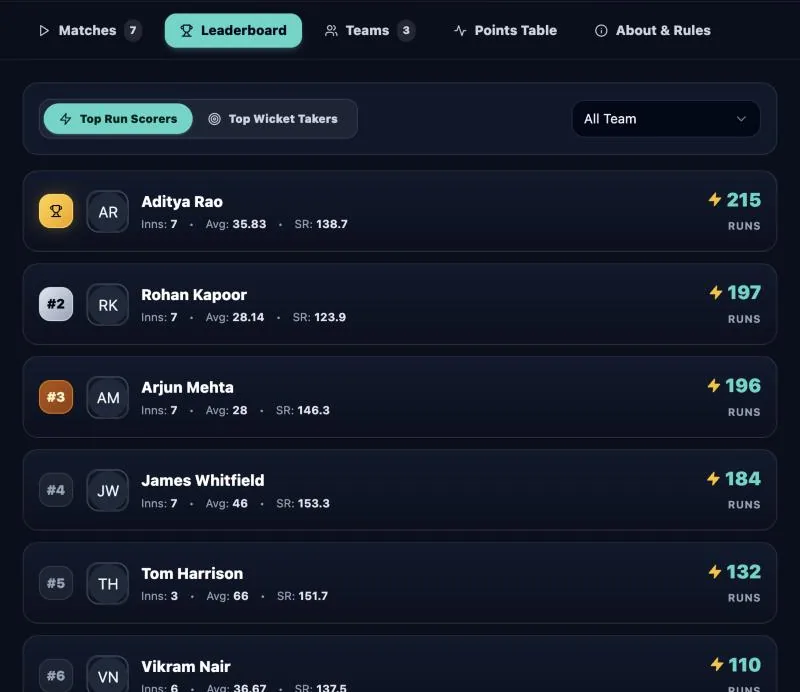
The Leaderboard tab ranks the top run scorers and wicket takers across the tournament, with each player's innings, average and strike rate. Filter by team for team awards.
Quick checklist
- Create the tournament with its name, dates, ball type and rules.
- Add the teams, or share the QR code so captains register.
- Make the fixtures in the app, or add each match with its round.
- Score each match, or let each match's creator score it.
- Open the Matches tab as results come in, so the knockouts fill in.
- Share the page, and use the leaderboards for the awards.
Questions
How do I create a cricket tournament online?
On Criconic, create a tournament with its name, location, dates, ball type and rules. Add the teams yourself or share the tournament QR code, then make the fixtures in the app or add each match with its round. The points table, NRR and leaderboards update after every match.
Does Criconic make the fixtures automatically?
Yes, in the app. On the tournament's Matches tab, tap Make fixtures, pick League, Groups + knockout or Knockout and the days, and check every match before saving. Knockout matches get their teams as results come in. On the website you add matches one by one.
How is the points table calculated?
2 points for a win and 1 for a tie or drawn Test. Teams are sorted by points, then net run rate. Only matches labelled League Match count.
Who can score tournament matches?
The tournament's organizers can score every match in it, along with each match's creator and their co-scorers.
Do fans need an account to follow the tournament?
No. The tournament page and every match's live scorecard open in any browser without logging in, unless you make the tournament private.